
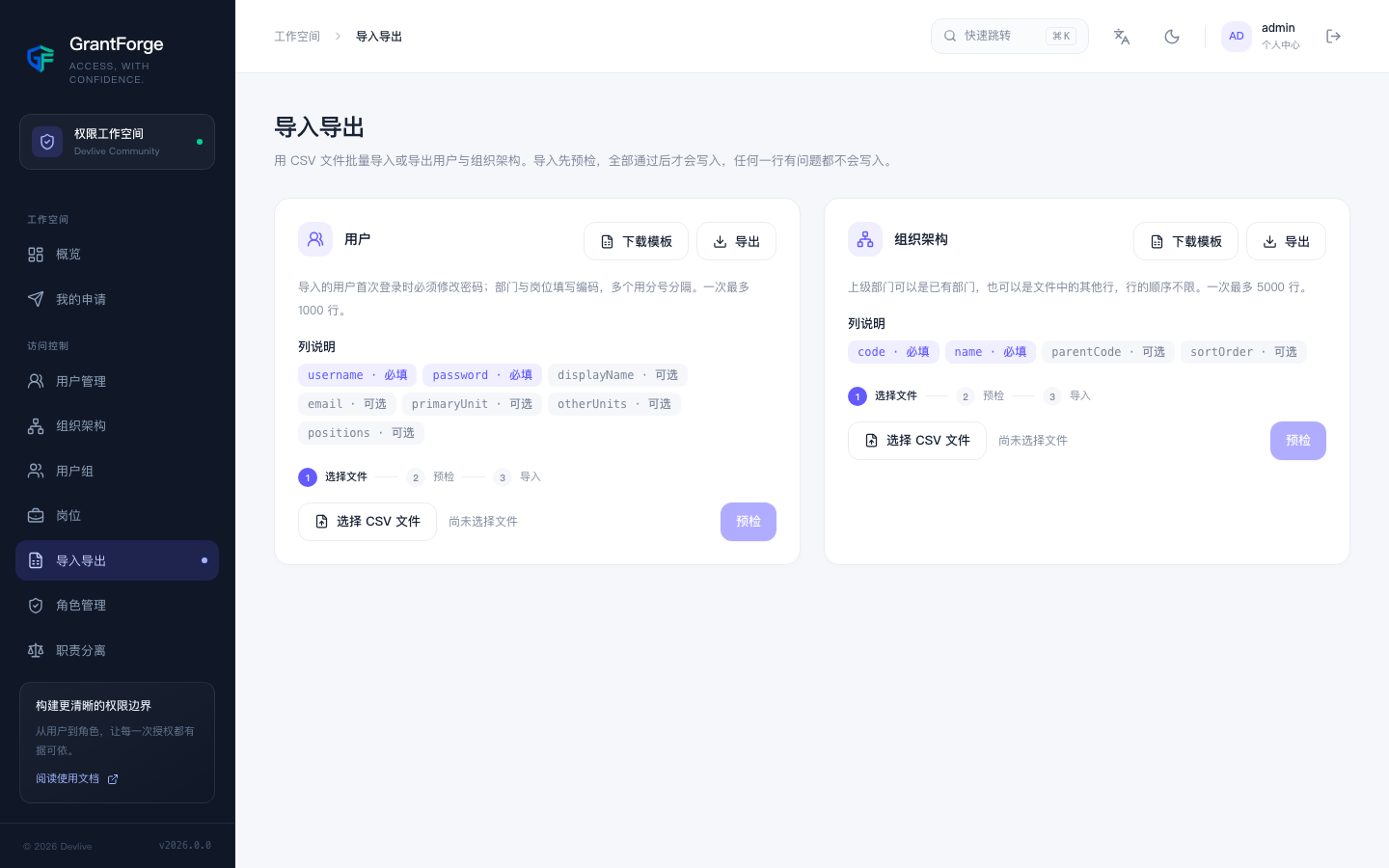
Access control → Import/export bulk imports or exports users and the organization structure with CSV files.
Import
- Click Download template and fill it in following the column descriptions. Headers are case-insensitive and extra columns are ignored; enter a user's departments and positions as codes, separated by semicolons when there are several.
- Upload the file and click Pre-check: GrantForge checks it row by row and reports every problem (row number, column, and reason).
- When everything passes, click Confirm import of N rows. If any row has a problem, nothing is written, so an import can never end up half done.
Rules:
- The file encoding can be UTF-8 or GBK (the default when Excel saves a Chinese CSV is GBK); it is detected automatically.
- A file may contain at most 1,000 users or 5,000 departments and be no larger than 2 MB (configurable).
- Departments are ordered by their parent relationships during import, so a parent may appear after its children in the file; cycles within the file are reported.
- Initial passwords must satisfy the password policy, and imported users must change their password on first sign-in.
- You can only import into departments and positions that your data permissions allow you to see.
Export
Export the users matching the current filters or all departments; the file name includes the date, for example users-2026-10-05.csv. Exports respect data permissions and field permissions as well: rows you cannot see are not exported, and restricted fields are hidden or masked according to their rules. Cells starting with =, +, -, or @ get a prefix so spreadsheet software does not execute them as formulas.