Sign-in
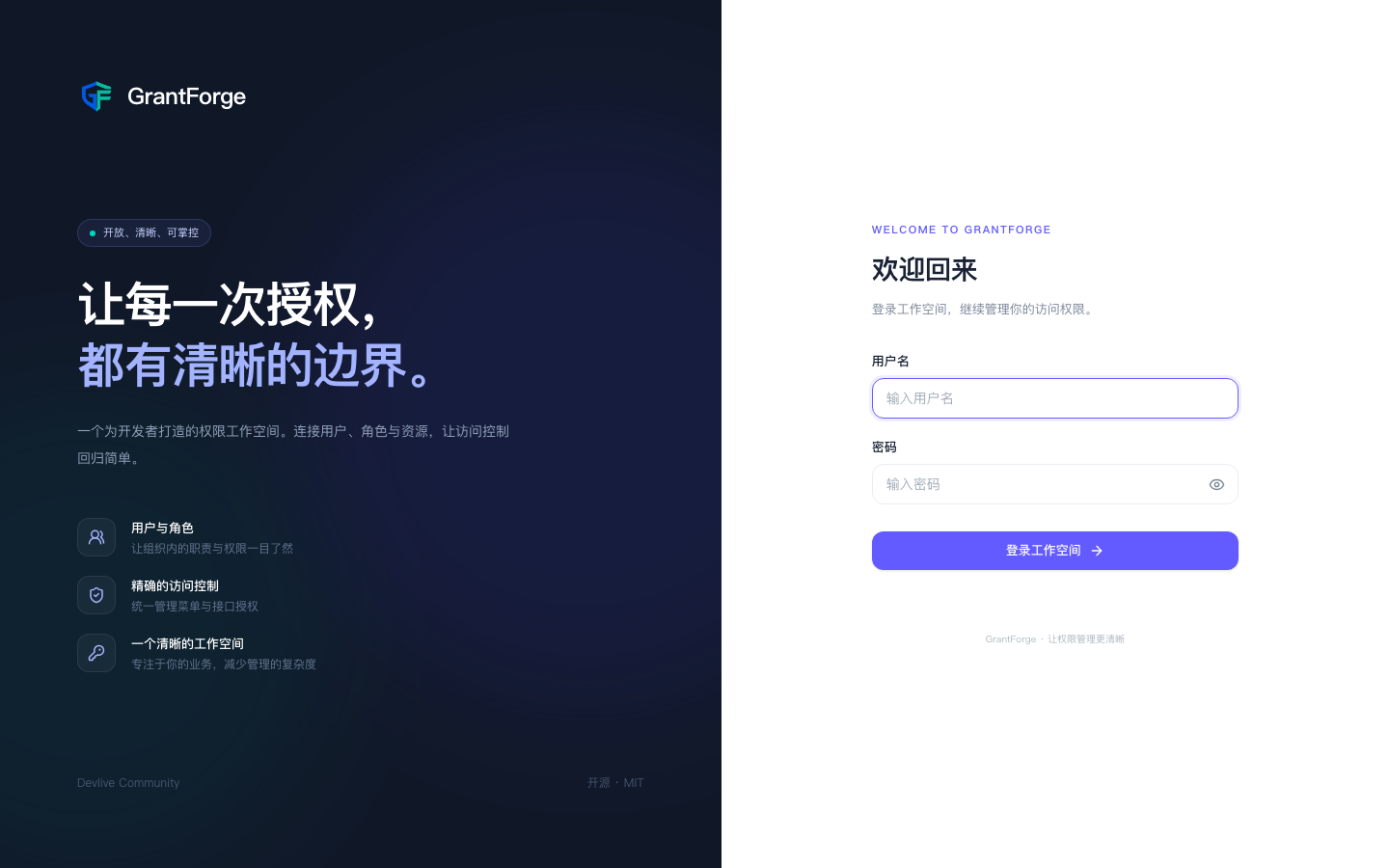
Usernames are case-insensitive. Five consecutive incorrect password attempts (configurable) lock the account for 15 minutes; an account locked by an administrator must be unlocked by an administrator. When identity sources are enabled, the sign-in page also shows "Sign in with X" buttons — see Identity sources.
Sessions are stored on the server; the browser only holds an HttpOnly session cookie. A session expires after 30 minutes of inactivity (configurable) and you have to sign in again.
Profile
Click the avatar in the top-right corner to open your profile:
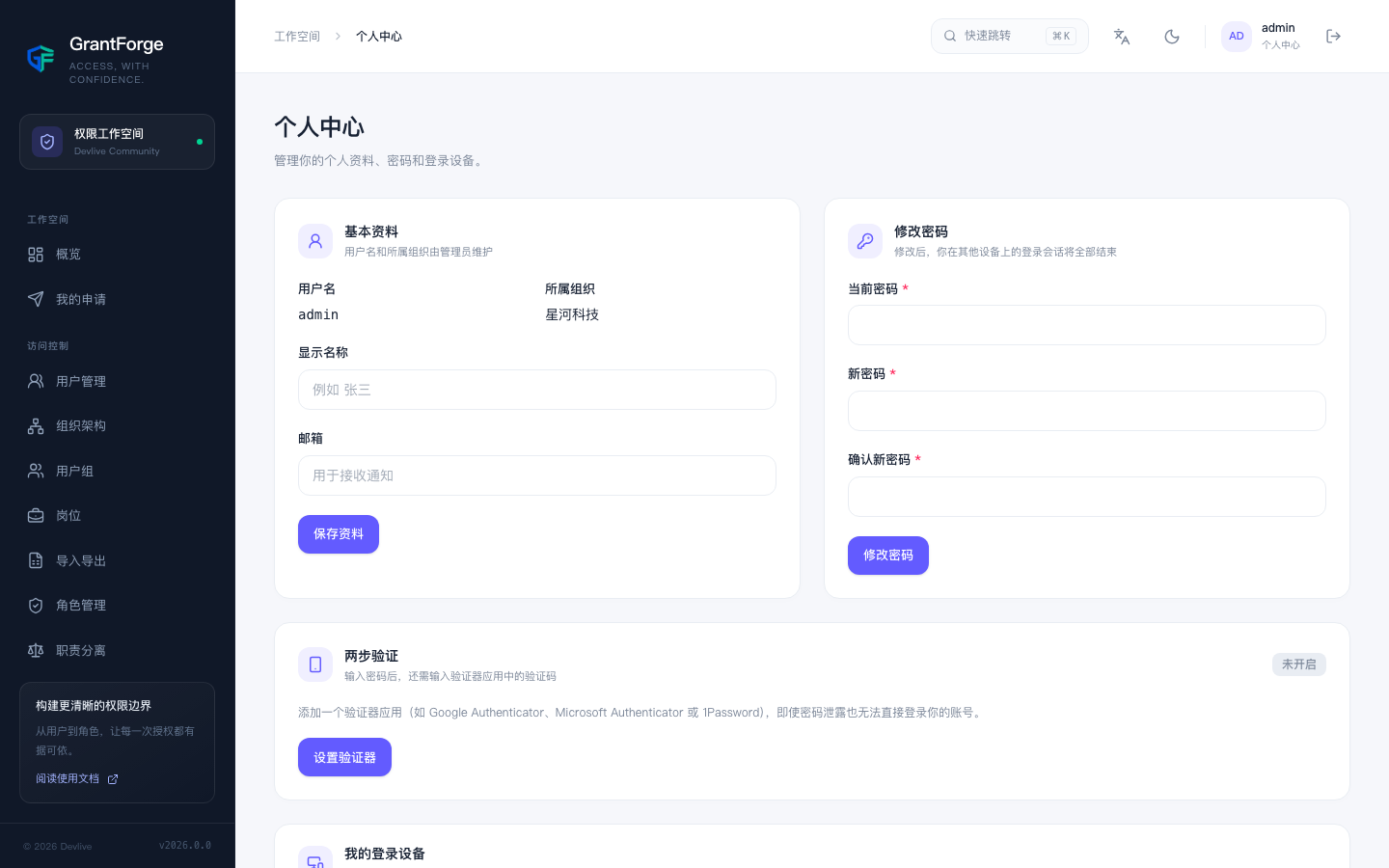
- Basic profile: change your display name and email. Your username and organization are maintained by administrators.
- Change password: requires your current password. After you change it, all of your sessions on other devices end. Accounts signed in through an identity source do not see the change-password entry here — the password is managed by the identity source.
- Two-step verification: see below.
- My signed-in devices: the list of browsers currently signed in as you; you can end sessions you do not recognize.
- Recent sign-in activity: the last 10 sign-ins, sign-outs, and failed attempts, including other people's attempts with your username.
After an administrator resets your password or your password expires, your next sign-in takes you to the change-password page first; other features are unavailable until you have changed it.
Two-step verification
Once enabled, signing in requires — in addition to your password — a 6-digit code from an authenticator app (Google Authenticator, Microsoft Authenticator, 1Password, etc.).
- In your profile's "Two-step verification", click Set up authenticator.
- Add the account in your authenticator app: enter the key shown on the page, or open the otpauth link on the device that has the app installed.
- Enter the code shown in the app and click Enable.
- The page displays 10 recovery codes, shown only this once. Keep them safe: if you lose your authenticator, each recovery code can be used once in place of a verification code.
Once enabled, you can regenerate recovery codes (the old ones become invalid immediately) or turn two-step verification off; both operations require entering a verification code. If you lose your authenticator and have no recovery codes, ask an administrator to reset two-step verification for your account in Users.
Re-verification for sensitive operations
For accounts with two-step verification enabled, the following operations require a verification within the last 10 minutes (configurable): rotating signing keys, creating a client or rotating its keys, creating or disabling tenants, resetting another person's password or two-step verification, assigning roles, modifying authorizations, adding or modifying identity sources, and approving access requests.
If more time has passed, the console pops up a "Confirm identity" dialog; after you enter a verification code it automatically continues the operation. Set grantforge.security.mfa.required-for-sensitive=true to require that accounts performing these operations have two-step verification enabled.
Online sessions
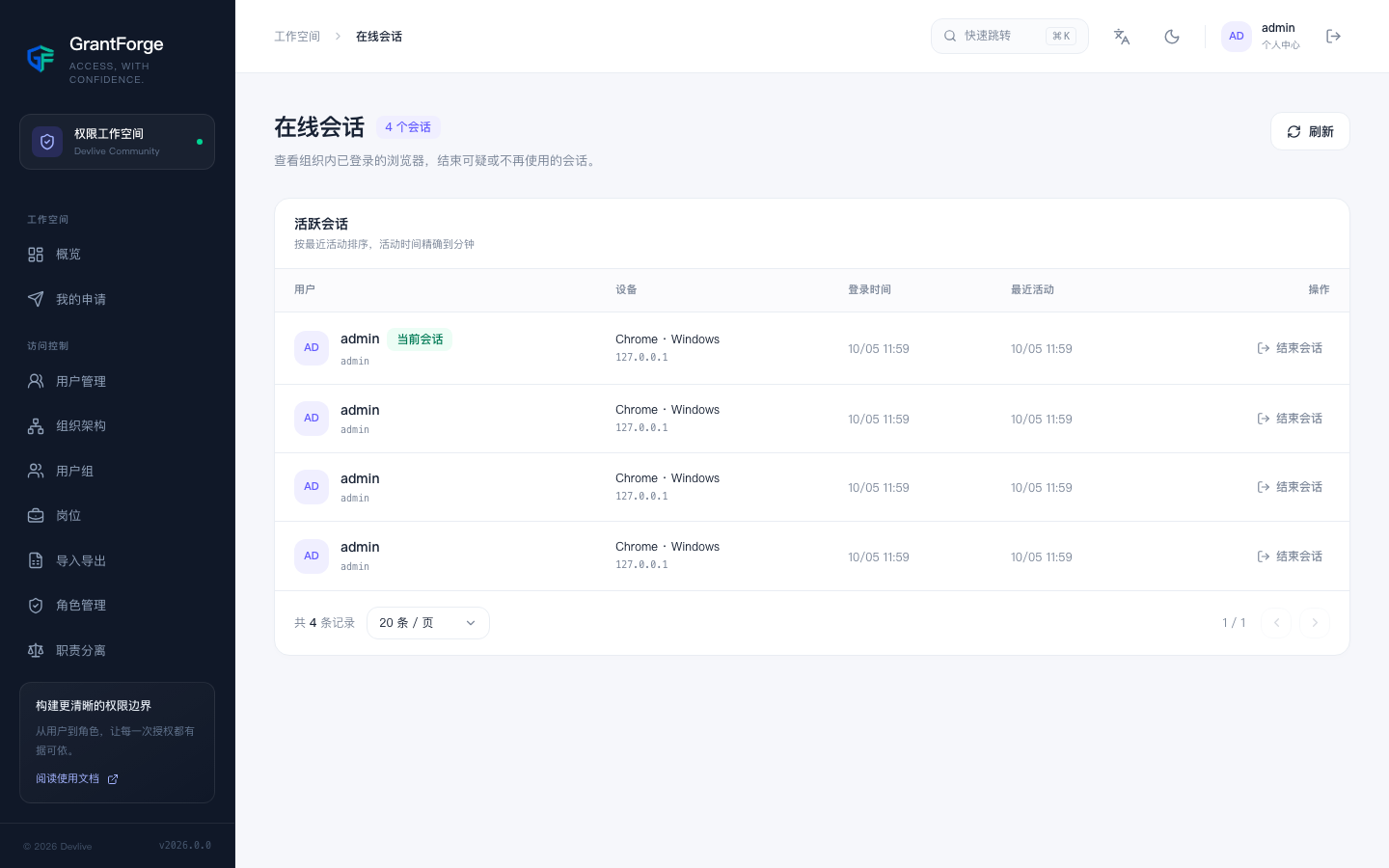
In Access control → Online sessions, administrators can see every browser signed in to the tenant (account, IP, browser, sign-in time, recent activity) and end suspicious sessions. Disabling or locking an account, or resetting its password, immediately ends all of that account's sessions.