
Effective permissions
Click "View Effective Permissions" on a user row in User Management to see everything the user can currently use: roles, menus and buttons, APIs, data scopes and restricted fields.
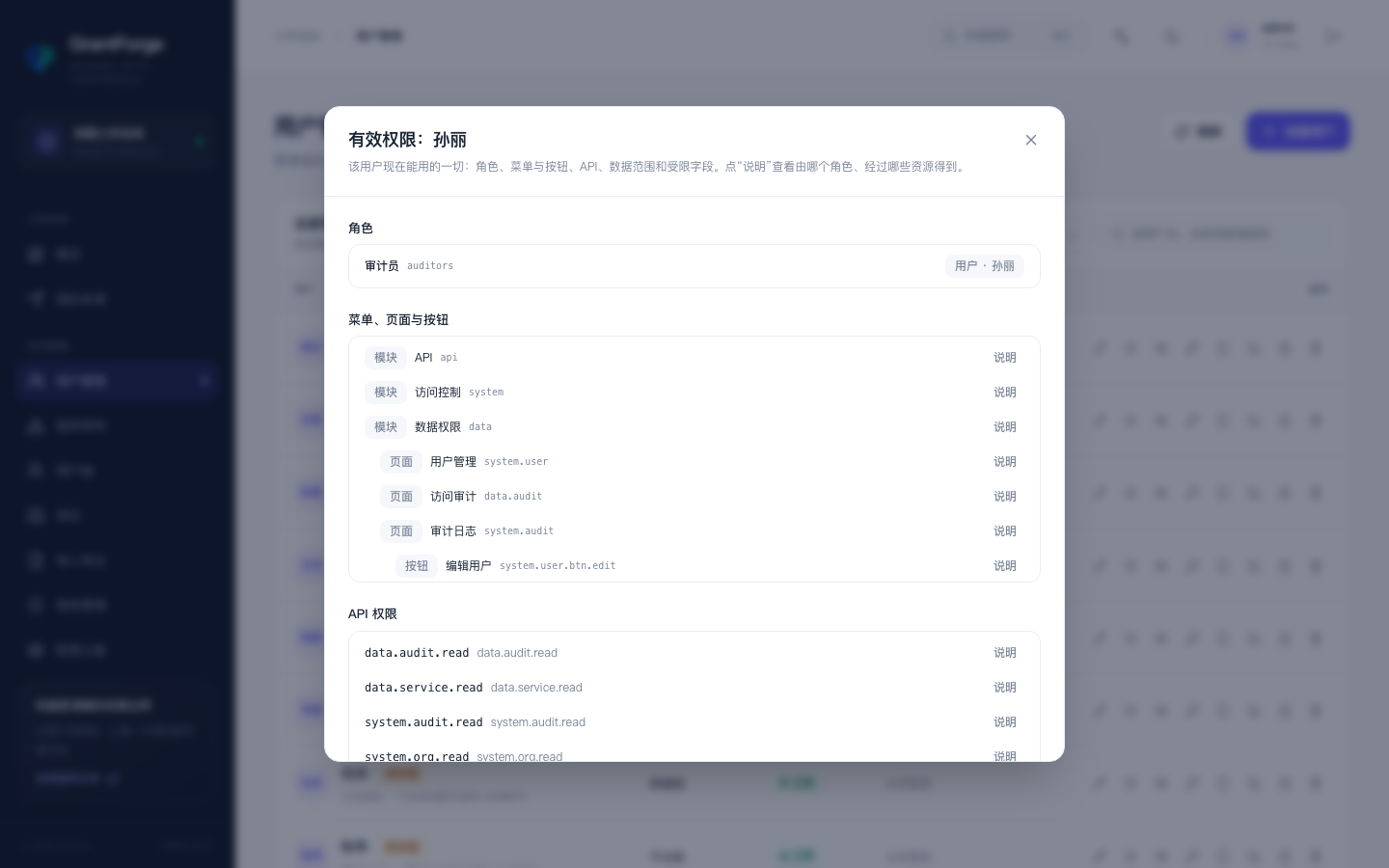
Click Explain on any item and GrantForge answers "why it works": which role grants it, through which assignments (direct, user group, department, position) and which resource derivations it comes from. When something does not work, it says whether it was never granted or is blocked by a deny rule.
Simulating changes
Open Simulate Changes in the effective permissions view: assume you add or remove certain roles for the user and see which menus, buttons and APIs would be gained or lost. A simulation is only a calculation and saves nothing, which makes it a good way to confirm the effect before adjusting permissions.
Audit log
Access Control → Audit Log records who did what and when: logins, grant changes, administrative operations and rejected calls.
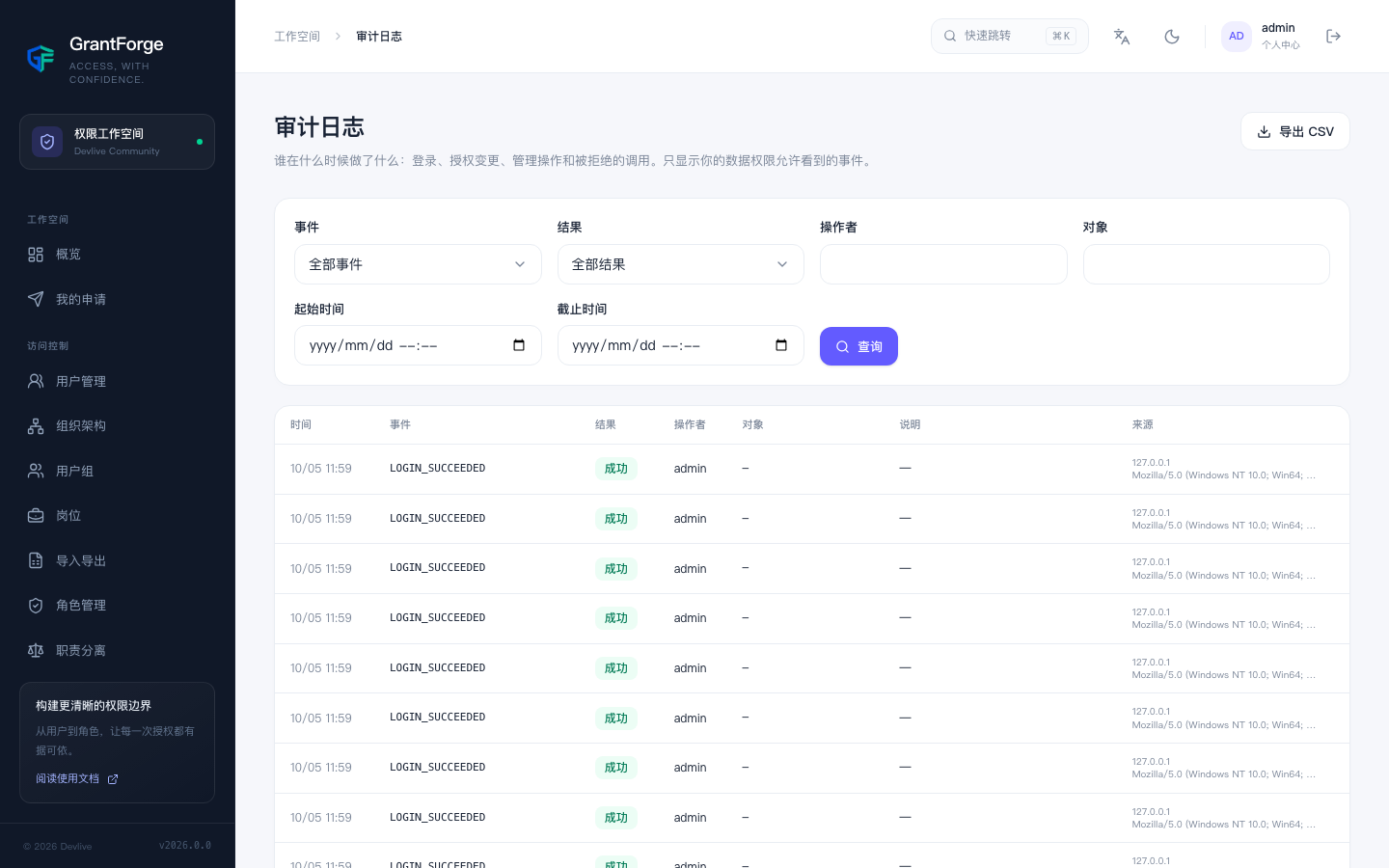
- Filter by event, result, operator, object and time; results can be exported as CSV.
- Every event carries the source IP, browser and request ID; the request ID matches the server-side logs.
- Only events that your data permissions allow you to see are shown.
- Audit records are retained for 365 days by default (
grantforge.audit.retention), and archiving to a directory before deletion can be configured.
Recorded events include: successful and failed logins, lockouts, logouts, session termination and password changes; changes to tenants, departments, users, user groups and positions; changes to the resource and API catalogs; changes to roles, grants, inheritance and assignments; changes to data and field policies; every step of separation of duties, access requests and reviews; changes to identity sources and OAuth clients; and rejected API calls.